
 Are you reaching the limit of your mailbox storage quota or simply want to get rid of some clutter in your mailbox but don’t know where to start? This is the guide for you!
While there is no single “holy grail” method in storing your emails, the strategy used for cleaning up your mailbox effectively are much more generic and can be used for pretty any storage method you use.
In addition to having that “cleaned up” feeling, there are also technical benefits to having a tidy mailbox such as faster loading of Outlook, less clutter in your Search results and quicker backup ups since the mailbox to backup is now smaller.
- How big is my current mailbox?
- How big are the emails?
- Cleaning up folders;
- Compress the pst-file after cleanup
- General tips to keep your mailbox small
- Add-ins to help process emails and attachments
How big is my current mailbox?
 Before starting with cleaning up, you’ll first need to know how “dirty” your mailbox really is. To get an overview of the total size of your mailbox and each individual folder you can open the Folder Size dialog;
- Open the Mailbox Cleanup dialog;
- Outlook 2007
Tools-> Mailbox Cleanup… - Outlook 2010 / 2013 / 2016 (msi)
File-> section Info-> button Cleanup Tools-> Mailbox Cleanup… - Outlook 2016 / 2019 / Office 365
File-> section Info-> Tools-> Mailbox Cleanup…
- Outlook 2007
- Click the button: View Mailbox Size…
- In the window that is being displayed now, you’ll see an overview of your mailbox folders and their sizes.
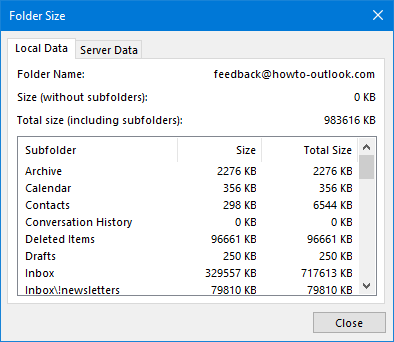
Overview of folders in the mailbox and their sizes.
When connecting to Exchange, you’ll see a Local Data and a Server Data tab. You only have to look at the Local Data tab; cleanup changes you make will automatically take place on the server as well.
However, when you use Outlook 2013, 2016, 2019 or Office 365 and have the Sync Slider set to not sync all your mail from your mailbox, then take a look at the Server Data tab instead as otherwise you’ll miss the amount of data which is only kept on the server.
To see your current sync settings in Outlook 2013, 2016, 2019 and Office 365 use:
File-> Account Settings-> Account Settings…-> double click on your Exchange account.
Tip!
Click here if you are not familiar with sizes in “bits and bytes”.
How big are the e-mails?
 To see how big the individual messages are, you might need to add the “Size” column to your view. To verify this, or to add this column;
- Open the “Customize View” dialog;
- Outlook 2007
View-> Arrange By-> Custom… - Outlook 2010 / 2013 / 2016 / 2019 / Office 365 (Classic Ribbon)
View-> View Settings - Office 365 (Single Line Ribbon)
View-> Current View-> View Settings…
- Outlook 2007
- In the Customize View dialog press the “Columns…” or “Fields…” button
- If the “Size” field is not visible yet in the right list named “Show these fields in this order”, select it in the left list name “Available fields” and press the Add button.
- Press OK to leave the open windows.
You’ll now see the “Size” column in your Outlook view when you are using the Single Line Layout.
- View-> Change View-> Single
If you are using a multi-line layout in Outlook 2007 or Outlook 2010 (which is the default), you’ll see the size of the message when hovering on the message with your mouse as well.
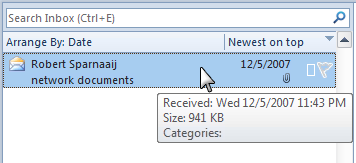
A tooltip revealing the message size in Outlook 2007.
In Outlook 2013, 2016, 2019 and Office 365, hovering on the item will not display a tooltip. It is recommended to use the Single Line Layout instead and disable the Reading Pane or setting it to the bottom while cleaning up based on size. You can do this on the View tab via the Reading Pane or the Layout button.

Message Size column shown in the Single Line layout.
Cleaning up
So now that we’ve got a good view of how big the folders are and how we can identify large mails, it’s time to clean up.
I always start with the easiest folders and the folders where I can delete the most. I will handle the clean up process in the following order;
Deleted Items
 This one is easy; you wanted to get rid of it? Well, do get rid of it! Right click the Deleted Items folder and choose “Empty Folder”.
Tip!
Do you want to be prompted to empty the Deleted Items folder when you close Outlook?
- Outlook 2007
Tools-> Options…-> tab Other-> option: Empty the Deleted Items folder upon exiting - Outlook 2010 / 2013 / 2016 / 2019 / Office 365
File-> Options…-> section Advanced-> select: Empty Deleted Items folders when exiting Outlook
Tip!
Do you sometimes want to skip the Deleted Items folder and get rid of the mail straight away?
Instead of pressing DELETE use SHIFT+DELETE to delete the message permanently.
Junk E-Mail
 Unfortunately, nowadays everybody needs a Junk Email folder. Cleaning this folder is nearly as quickly as emptying the Deleted Items folder.
Scroll through this folder one last time to make sure that there aren’t any still needed e-mails in it. If so, you can move these to the appropriate folder. Once you’re done, you can easily empty the folder by right clicking on the folder and choose “Empty Folder”.
Tip!
If you are using a third party Junk E-mail filter which places the Junk Email messages into a folder of their own, you’ll probably won’t have the “Empty Folder” right click option but need to use “Delete All” instead.
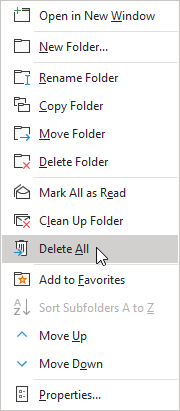
Outlook has a “Delete All” command for any folder.
Inbox, Sent Items and other subfolders
 These folders can all be tackled in pretty much the same way so we won’t discuss them individually.
In most cases, you can even tackle them all at the same time and don’t have to deal with all your folders individually either.
Large messages need to go first
Now that the trash cans are empty, we’ll continue the cleanup process with first finding the largest chunks in the mailbox. In most cases you’ll find that 20% of your mailbox items account for 80% of the size. You can find these large chunks by using a Search Folder called “Large mail”. If you do not have this folder, you can create it via;
- Outlook 2007
File-> New-> Search Folder… - Outlook 2010 / 2013 / 2016 / 2019 / Office 365 (Classic Ribbon)
tab Folder-> button New Search Folder - All Outlook versions
Right click on “Search Folders” in the Folder Pane-> New Search Folder… - Keyboard shortcut
CTRL+SHIFT+P
In the dialog that pops-up, select “Large mail” and set the “Show mail at least this large” option to 5120 KB (which is 5 MB). If not a whole lot of messages are found, you can reduce this to 3072 KB (3 MB).
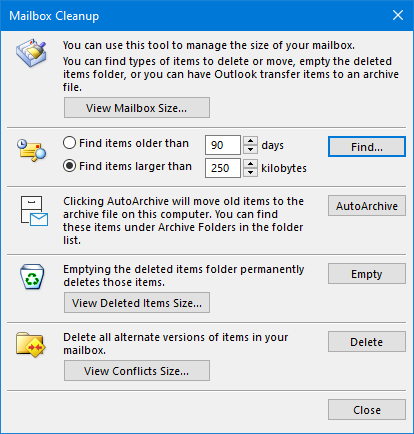
As an alternative to Search Folders, you can also use the Mailbox Cleanup tool.
Now that you have found the largest items in your mailbox, you basically have 4 options;
- You don’t need the message or the attachment;
Use SHIFT+DELETE to delete the message at once - You still need the message but don’t need the attachment anymore;
Double click on the e-mail to open it-> right click the attachment and choose “Remove”. Save and close the message - You don’t need the message but you still need the attachment;
Right click the attachment-> choose Save As and save the attachment. Then use SHIFT+DELETE to get rid of the message - You still need the message and the attachment;
You can leave it then although this doesn’t help cleaning up. You might want to look at this tip.
Newsletters and other repetitive mails go second
For the second round of the deletion process, we sort the Inbox (or any other folder) by the “From” field. The reason for this is that you probably have subscribed yourself to a couple of newsletters. While some of them continue to hold their value, many of them do not and by sorting the mailbox by the From field, you’ll group all the newsletters from the same source together so you can easily remove them at once.
This step might not help much in reducing the size of your mailbox that much, but it often will help you to greatly reduce the amount of emails in your mailbox.
To sort a folder by who it is From, use;
- Outlook 2007
View-> Arrange By-> From - Outlook 2010 / 2013 / 2016 / 2019 / Office 365 (Classic Ribbon)
tab View-> group: Arrangement-> From - Office 365 (Single Line Ribbon)
View-> Arrange By-> From
Tip!
You can again use a Search Folder or Advanced Find for this. For this search, do not set any criteria so all messages will be returned for the selected folders in a single overview.
Cleanup conversations
Ever had some discussions via email? I’m sure you have and I’m also sure that most people reply with the original message quoted in the reply. There is nothing wrong with that, but this also means that the last message that you have sent or received contains the entire discussion and that you can get rid of all the other messages from that discussion.
To easily identify those messages, sort the folder or search results by the Subject field. All the messages that share the same subject will now be grouped together and can be identified and deleted easily.
Outlook has a special Conversation Clean Up feature for this which you can find on the Home tab. When using Office 365 with the Single Line Ribbon, click on down arrow of the Delete button to see the Clean Up commands.
You can set your cleanup preferences by going to;
File-> Options-> section: Mail-> option group: Conversation Cleanup
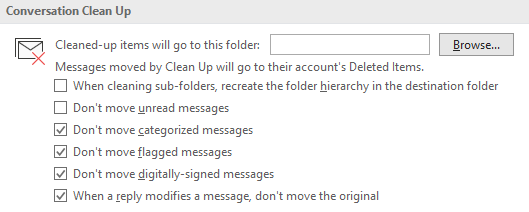
Conversation Clean Up options.
Note:
If you are using an Exchange account, the Conversation Clean Up tools will only be available to you when you have your Exchange account configured to use Cached Exchange Mode.
Old items
The last quick cleanup step for messages is; archive or delete old items.
I understand; there are some things you need to keep forever and some things that you want to keep forever. But do you really need to have those things to be “in your face” all the time? Probably not. In that case, it doesn’t make much sense to keep it in your default Inbox folder or even in your default mailbox store anymore either.
In these cases, you can move those items to either a separate folder or to a separate pst-file. In case of the last, you can configure Outlook to automatically move items which are older than so many days, weeks or months. This feature is called AutoArchive and can be configured via;
- Outlook 2007
Tools-> Options…-> tab Other-> button: AutoArchive… - Outlook 2010 / 2013 / 2016 / 2019 / Office 365
File-> Options-> section Advanced-> AutoArchive…
To easily find the old messages, you can create an “Old mail” search folder or do a search via the Mailbox Cleanup… tool similar to finding large messages.
Special notice: sent items with attachments
When you send lots of attachments, your Sent Items folder can become quite big. While we may have taken out the largest attachments already by our previous steps, you can probably clean out most, if not all, attachments from your Sent Items folder. Most of these attachments are files you can reach in another way; how else could you have sent them? So basically these files are stored more than once and can be get rid of.
Tip!
You might want to try to send links instead of attachments.
Special notice: “funny” forwards and project attachments in Inbox
Think about all those “funny” forwards you got over the years; did you keep them or delete them? Especially these kinds of attachments can be easily stored outside your mailbox in a proper place like the My Pictures and My Videos folder.
Also, if you worked on a project for work or school, you’ve probably discussed about the documentation over mail a couple of times as well. It is a good practice to remove those as well and store them in a folder you created for the project so you don’t end up working with an outdated version.
Journal
 After all my years of working with Outlook, I’ve seen that many people have not found a good practical use for the Journal yet or do not know about it at all. Basically what the Journal does is creating a log entry every time you spend time on certain objects. These objects can be Contacts and Office documents but also specific type of messages like a reply to a meeting request.
If you don’t use it, you should check and see if there are any entries in the Journal folder as it can become quite large over time. You can find the Journal in your folder list of by pressing CTRL+8. If it has entries in it, the option to maintain the Journal is probably turned on. You can change the Journal settings via:
- Outlook 2007
Tools-> Options…-> tab: Preferences-> button: Journal Options… - Outlook 2010
File-> Options-> section: Notes and Journal-> button: Journal Options… - Outlook 2013 / 2016 / 2019 / Office 365
The automatic Journal feature has been removed since Outlook 2013.
Uncheck everything to make sure nothing is logged to the Journal anymore.
Tip!
Since the Journal is probably set to the Timeline view it’s hard to delete all entries at once. Changing the view to Categories gives you an easy view to delete al the entries at once. Select one item and then press CTRL+A to select them all. Once they are selected, press SHIFT+DELETE to get rid of them.
When you’ve got lots of entries, you could get an unknown or memory error. To avoid this, you must first deselect all items and then select groups of items (somewhere between 100 and 200 should work) by using the SHIFT button. Then use SHIFT+DELETE to delete them and skip the Deleted Items folder. Repeat this until all items are deleted.
Calendar
 Most of the time this folder isn’t that big. If it is big it’s probably because some Calendar items have attachments which were needed for a meeting. If your Calendar folder isn’t that big, you might want to skip this step as it could be quite of a hassle to clean up this folder.
To easily locate the big Calendar items, we need to change the view again to a list view like “List” or “By Category” via the View menu or tab. In this view you can add the “Size” column in the same way as described in “How big are the e-mails”. When you’ve found the large item you can open it and delete the attachment by selecting it and pressing DELETE and then save and close the item.
Tasks
 Cleaning the Tasks folder is practically the same as cleaning the calendar folder. The only difference is that the Tasks folder already has a list view.
Contacts
 Contacts usually don’t even take up 1kb in space so it is very likely that you can skip this folder as well in your cleaning process. However you are able to add attachments to contacts and are also able to add a picture of the contact to the contact item.
If you have a big Contacts folder, you can identify and clean large items in the same way as the calendar folder. Setting the view of the Contacts folder to Phone List allows you to easily add the “Size” column.
If you find yourself having a lot of duplicate contacts, you can try a duplicate remover.
Notes
 The Notes folder probably doesn’t need cleaning as the Note items are very small and can’t contain attachments. It can however hold a great deal of clutter from old Notes. Sorting them by date created is most likely the way to go here. Change the view of the folder to “Notes List” or “List of Notes” so you can sort them by date.
Compress the pst-file after cleanup
 If you are working with a pst-file and you’ve deleted quite a lot of mail, the file size still isn’t reduced in Explorer. To remove the empty space created in the pst-file you’ll need to compact it. To do this;
- Open the Data Files dialog:
- Outlook 2007
File-> Data File Management… - Outlook 2010 / 2013 / 2016 / 2019 / Office 365
File-> Account Settings-> Account Settings…-> tab Data Files
- Outlook 2007
- Double click on the pst-file that you wish to compact.
- In the dialog that is being displayed now, press the Compact Now button.
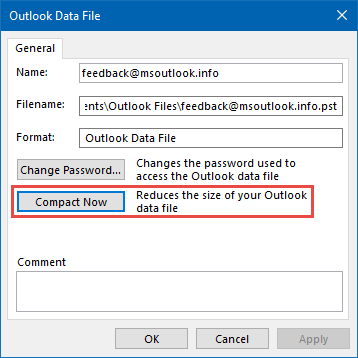
Compact your pst-file to free some disk space.
Note:
Compacting a pst-file could take a while when you have deleted a lot of messages so be patient or do it overnight. For best results you’ll need to rerun the Compact Now process 2 more times. These repeated runs should be done within a minute.
General Tips To Keep Your Mailbox Small

- Don’t store attachments in Outlook but store them outside of your mailbox in a folder on your hard disk where it belongs. Example; the Documents folder, the Pictures folder, a corresponding Project or Programs folder, etc…
- Send as little attachments as possible. When you know the receiver can also access the file on the same network, SharePoint website or other web storage like OneDrive or DropBox, think about sending links instead.
Since lnk-files to file shares are blocked by default, it is better to send a link to the file by using < and > like this<\\servername\sharename\foldername\filename.doc>or use Insert-> Hyperlink. - If you need to send attachments, send them in a compressed format like zip-files. This will save you some bandwidth and the receiver some mailbox space; hopefully he/she will return you the favor.
- Periodically check the size of the individual folders by using the View Mailbox Size button so you can react on a fast growing mailbox in time. This way, you’ll prevent the need to clean your mailbox for several hours at the end of the year or when it becomes full and be able to do it with just minutes a week or even a month.
Automatically Manage Attachments by using an Add-In
 Sperry Software has a great add-In called Attachment Save which process attachments automatically. Some key-features are:
- Runs automatically in the background or in manual mode.
- Replaces attachments with URL links to the saved file.
- Retains the paperclip icon, but removes the attachment.
- Allows for automatic renaming or overwriting of files.
An Undo feature allows you to re-attach the attachments to the original message. - Saves the attachment in a Windows sub-folder (mimics the Outlook folder structure).
- Monitors multiple folders at the same time.
Click here for more information about the add-in.
If you decide to order use BH93RF24 to get a discount.
For more Attachment Management add-ins see the add-in section.
For general Incoming Mail Management add-ins click here.
Bits and Bytes
| 1GB = 1024 MB | Big, probably the size of your entire mailbox if you send attachments and saved all your mails of the last couple of years |
| 10MB = 10240 KB | This would be a message with a big attachment. The sending/receiving size limit of a message has often been set to somewhere between 10 and 20 MB. |
| 1MB = 1024 KB | Normal size for a message with a small attachment |
| 1KB = 1024 Bytes | Small, probably a mail with just some text in it |
- An old diskette can contain up to 1.44MB.
- One CD is a bit under 500 diskettes.
- A standard DVD is about 6 CDs.
- A 16GB USB stick can almost store 4 standard DVDs.

