
 If you accidentally permanently deleted an item via SHIFT+DELETE or emptied your Deleted Items folder by mistake, and don’t have a recent back up to restore from, you can use this guide to try recover those deleted messages.
Chance of successful recovery
 You’ll get the best results if it just happened and you directly closed and haven’t restarted Outlook yet. Results are unpredictable when you have left Outlook open for a long(er) period of time after the items got deleted.
With some luck, you can recover all your permanently deleted items since the last time that you ran “Compact Now”. If you are unlucky, Outlook has already “auto compacted” the pst-file or overwritten the space where the deleted messages were originally stored within the pst-file.
Note:
When the method described in this guide fails or are considered too complex, a more thorough and streamlined recovery solution can be achieved with dedicated recovery tools such as DataNumen Outlook Repair (discount code: DNC-PUXB-HT ) and Stellar Repair for Outlook.
Recovery method
 The recovery method used in this guide is based on corrupting the “Table of Contents” (TOC) on purpose and then have it rebuild by scanpst.exe. Hereby we also rely on the fact that a pst-file is a database where deleted content is still left in-tact within the database until the database gets truncated (Compact Now) or the “white space” (space that contains deleted content) gets overwritten.
The TOC is used by Outlook to determine in which folder a message should belong. When a message gets deleted, its reference is removed from the TOC but, as mentioned previously, the message is left as “white space”. When scanpst.exe repairs the TOC, it will come across the deleted message as well but is unaware of the fact that is has been deleted and will recover it to the folder where the message has been deleted from originally.
Note:
Depending on the size of your pst-file and the specifications of your computer, this recovery process can take a considerable amount of time. It is not uncommon that a pst-file of around 1GB can take an hour to recover on a reasonable computer. Placing it on an SSD will significantly speed up the process.
Recovery process
 The recovery process requires a Hex Editor. For the screenshots below, I’ve used HxD which is free and comes in many languages. There is also a portable version of HxD which doesn’t require any local installation. There are many other Hex Editors to choose from as well.
- Locate the *.pst file and create a copy of it to work with (never mess around with original files!)
- Open the *.pst file in the hexadecimal editor of your choice.
In the column on the right side overwrite character position 7 through 13 with spaces. In the hexadecimal numbering system, this corresponds to 13 positions and not 6.
When done correctly, the hexadecimal column (left column) block 7 through 13 will then display20(hexadecimal value for a space).Tip!
If you are using HxD, then you can also select block 7 through 13 in the left column and choose;
Edit-> Fill Selection…-> button OK
This will fill the blocks with00, which will work just as well.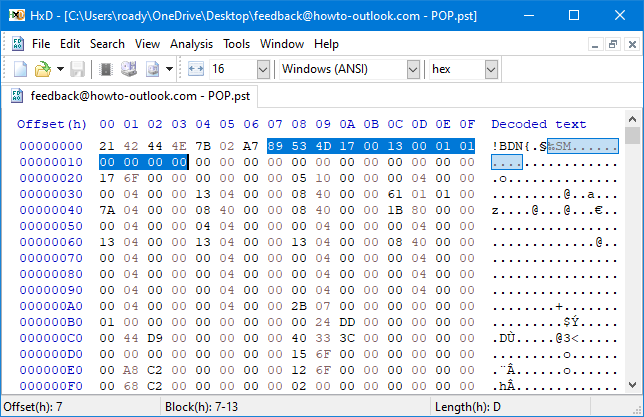
Before editing position 7 through 13 of the pst-file in HxD.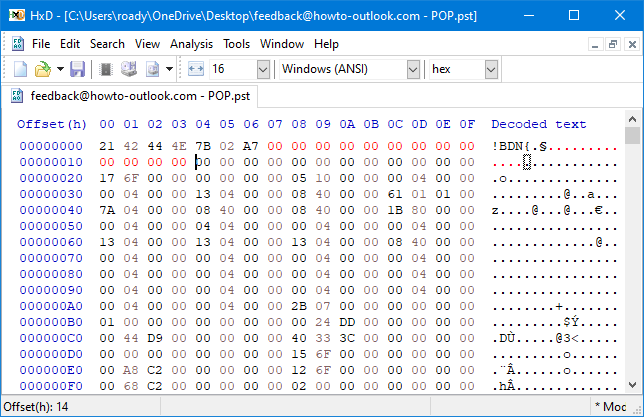
After editing position 7 through 13 of the pst-file in HxD.- Save the *.pst file and close the Hex Editor.
- As you have now corrupted your pst file, you’ll need to run scanpst.exe to repair it.
- When scanpst.exe has repaired your pst file, open it in Outlook and look in the Deleted Items folder, the original folder or the Lost and Found folder (created automatically when needed) to locate your recovered items.
Dedicated recovery tools
 If you don’t see any of your items restored, it might be impossible for scanpst.exe to retrieve them since scanpst.exe was of course not designed for this trick. In that case, you could use a 3rd party recovery tool.
One that has been very valuable to me with excellent results is DataNumen Outlook Repair. You can download a free trial to see what really is recoverable for your pst-file before purchasing. If you decide to order, use DNC-PUXB-HT to get a discount.
For more recovery tools see the Data Recovery add-in section.

