
 Believe it or not but some people are actually creating and sending messages with attachments that will do your computer no good. Yes, you are correct; VIRUSES! There are a lot of file types in which a virus can reside. The most known are executables (programs) and scripts (automated processes).
A filename consists out of 2 parts; a name and an extension. The extension is the part of the filename after the dot. For instance the filename document.docx. Document is the name part and docx is the extension part. The last part decides how the file opens. In our example a docx file will open with Microsoft Word.
At the moment there is a limited (but not a definite) list of file extensions that are known to be potential viruses. Outlook takes no chances and blocks these files whether or not it contains a virus because Outlook is not a virus scanner and therefore cannot determine whether the file is safe or not. This is actually a good thing; even unknown viruses will be blocked this way! The downside of this is that occasionally you could receive a file that you know is clean but still can’t access. For instance; you receive a certificate, script or other program by e-mail.
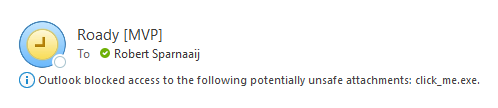
Outlook informs you about any blocked attachments in the message header
Unblocking procedure
 Before I tell you how you can still access those attachments, you must realize that you are creating a security risk on your computer this way. A good practice is to send these files in a compressed format (for instance zip or rar). This enables you to scan the file before unpacking and it will also take less inbox space and upload/download time! Another way to go would be to upload it to a cloud storage service like OneDrive or Dropbox and share it from there.
To unblock attachments involves changing the Registry. I strongly recommend to only edit the Registry when you actually receive a blocked attachment and when there is no other way to obtain that file again in a safer way (in a compressed format or via cloud storage) and you know for sure that the file is clean. Also, change back the Registry directly after you’ve saved the attachment. It probably sounds paranoid but you’ll be hitting yourself if you get infected because you “opened the door and invited the virus” yourself.
Alright, here goes;
- Make sure Outlook is closed.
- Open the Registry Editor;
- Start-> type;
regedit
- Start-> type;
- Locate the following key
- Outlook 2007
[HKEY_CURRENT_USER\Software\Microsoft\Office\12.0\Outlook\Security] - Outlook 2010
[HKEY_CURRENT_USER\Software\Microsoft\Office\14.0\Outlook\Security] - Outlook 2013
[HKEY_CURRENT_USER\Software\Microsoft\Office\15.0\Outlook\Security] - Outlook 2016, Outlook 2019 and Microsoft 365
[HKEY_CURRENT_USER\Software\Microsoft\Office\16.0\Outlook\Security]
- Outlook 2007
- Go to Edit-> New-> String Value and name the value
Level1Remove(case sensitive!) - Double-click on the newly created value and enter the extension including the “dot” that you want to open in Outlook. For instance .exe
If you need to enter more than one extension you’ll have to type separate them by a semicolon like this;.exe;.bat;.url - Press OK on the input box and close the registry editor
- When you open now Outlook, the attachments which hold those extensions aren’t blocked by Outlook anymore.
To let Outlook block those extensions again, follow the instructions again but instead of creating the Level1Remove value delete it.
If you are not comfortable with manually editing the registry or prefer easier access to block/unblock attachments you can also use OutlookTools (free).
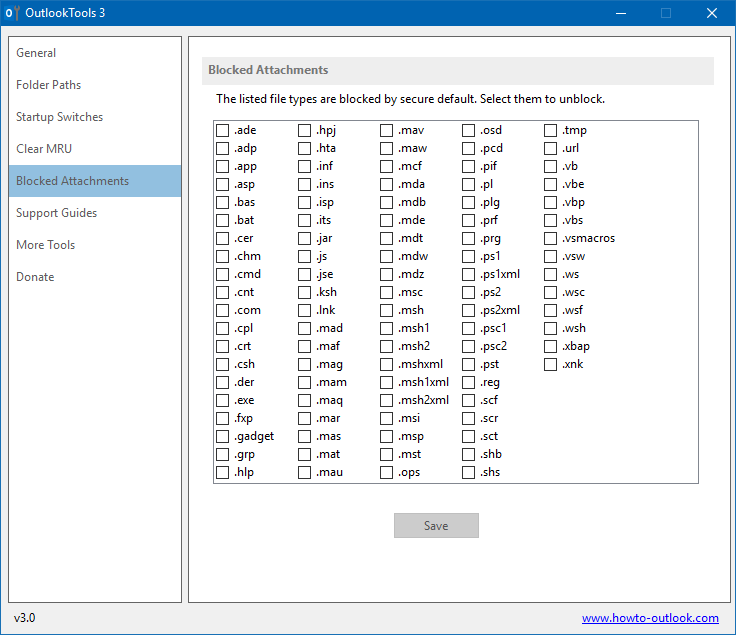
Easily unblock (and then block again) attachments with OutlookTools.
Important!
Change back the Registry settings directly after you’ve saved the attachment or you’ll leave a door open for infecting your computer with a virus!
List of blocked attachments
This is the list of file types that are blocked by Outlook (click here for the latest list published by Microsoft).
| Extension | File type description |
|---|---|
| .ade | Access Project Extension (Microsoft) |
| .adp | Access Project (Microsoft) |
| .app | Executable Application |
| .asp | Active Server Page |
| .aspx | Active Server Page Extended |
| .asx | ASF Redirector file |
| .bas | BASIC Source Code |
| .bat | Batch Processing |
| .cer | Internet Security Certificate File |
| .chm | Compiled HTML Help |
| .cmd | DOS CP/M Command File, Command File for Windows NT |
| .cnt | Help file index |
| .com | Command |
| .cpl | Windows Control Panel Extension (Microsoft) |
| .crt | Certificate File |
| .csh | csh Script |
| .der | DER Encoded X509 Certificate File |
| .diagcab | Microsoft Support diagnostic tools |
| .exe | Executable File |
| .fxp | FoxPro Compiled Source (Microsoft) |
| .gadget | Windows Vista gadget |
| .grp | Windows program group file |
| .hlp | Windows Help File |
| .hpj | Project file used to create Windows Help File |
| .hta | Hypertext Application |
| .htc | HTML component file |
| .inf | Information or Setup File |
| .ins | IIS Internet Communications Settings (Microsoft) |
| .isp | IIS Internet Service Provider Settings (Microsoft) |
| .its | Internet Document Set, Internet Translation |
| .jar | JAVA archive file |
| .jnlp | Java Network Launching Protocol |
| .js | JavaScript Source Code |
| .jse | JScript Encoded Script File |
| .ksh | UNIX Shell Script |
| .lnk | Windows Shortcut File |
| .mad | Access Module Shortcut (Microsoft) |
| .maf | Access (Microsoft) |
| .mag | Access Diagram Shortcut (Microsoft) |
| .mam | Access Macro Shortcut (Microsoft) |
| .maq | Access Query Shortcut (Microsoft) |
| .mar | Access Report Shortcut (Microsoft) |
| .mas | Access Stored Procedures (Microsoft) |
| .mat | Access Table Shortcut (Microsoft) |
| .mau | Media Attachment Unit |
| .mav | Access View Shortcut (Microsoft) |
| .maw | Access Data Access Page (Microsoft) |
| .mcf | Manifest configuration file |
| .mda | Access Add-in (Microsoft), MDA Access 2 Workgroup (Microsoft) |
| .mdb | Access Application (Microsoft), MDB Access Database (Microsoft) |
| .mde | Access MDE Database File (Microsoft) |
| .mdt | Access Add-in Data (Microsoft) |
| .mdw | Access Workgroup Information (Microsoft) |
| .mdz | Access Wizard Template (Microsoft) |
| .msc | Microsoft Management Console Snap-in Control File (Microsoft) |
| .msh | Microsoft Shell |
| .msh1 | Microsoft Shell |
| .msh2 | Microsoft Shell |
| .mshxml | Microsoft Shell |
| .msh1xml | Microsoft Shell |
| .msh2xml | Microsoft Shell |
| .msi | Windows Installer File (Microsoft) |
| .msp | Windows Installer Update |
| .mst | Windows SDK Setup Transform Script |
| .msu | Windows Update file |
| .ops | Office Profile Settings File |
| .osd | Application virtualized with Microsoft SoftGrid Sequencer |
| .pcd | Visual Test (Microsoft) |
| .pif | Windows Program Information File (Microsoft) |
| .pl | Perl script file |
| .plg | Developer Studio Build Log |
| .prf | Windows System File |
| .prg | Program File |
| .printerexport | Printer backup file |
| .ps1 | Windows PowerShell |
| .ps1xml | Windows PowerShell |
| .ps2 | Windows PowerShell |
| .ps2xml | Windows PowerShell |
| .psc1 | Windows PowerShell |
| .psc2 | Windows PowerShell |
| .psd1 | Windows PowerShell |
| .psdm1 | Windows PowerShell |
| .pst | MS Exchange Address Book File, Outlook Personal Folder File (Microsoft) |
| .py | Python script |
| .pyc | Python script |
| .pyo | Python script |
| .pyw | Python script |
| .pyz | Python script |
| .pyzw | Python script |
| .reg | Registration Information/Key for W95/98, Registry Data File |
| .scf | Windows Explorer Command |
| .scr | Windows Screen Saver |
| .sct | Windows Script Component, Foxpro Screen (Microsoft) |
| .shb | Windows Shortcut into a Document |
| .shs | Shell Scrap Object File |
| .theme | Desktop theme file settings |
| .tmp | Temporary File/Folder |
| .url | Internet Location |
| .vb | VBScript File or Any VisualBasic Source |
| .vbe | VBScript Encoded Script File |
| .vbp | Visual Basic project file |
| .vbs | VBScript Script File, Visual Basic for Applications Script |
| .vhd | Virtual Hard Disk |
| .vhdx | Virtual Hard Disk Extended |
| .vsmacros | Visual Studio .NET Binary-based Macro Project (Microsoft) |
| .vsw | Visio Workspace File (Microsoft) |
| .webpnp | Internet printing file |
| .website | Pinned site shortcut from Internet Explorer |
| .ws | Windows Script File |
| .wsc | Windows Script Component |
| .wsf | Windows Script File |
| .wsh | Windows Script Host Settings File |
| .xbap | XAML browser application |
| .xll | Excel add-in |
| .xnk | Exchange Public Folder Shortcut |

